Use Quiz Analytics to identify your team's knowledge gaps.
Jump down:
Overview
To access quiz analytics, click Reports and select Quiz Results and grading from the left menu bar.
The Quiz Analytics screen will look like the following image once you expand a quiz:
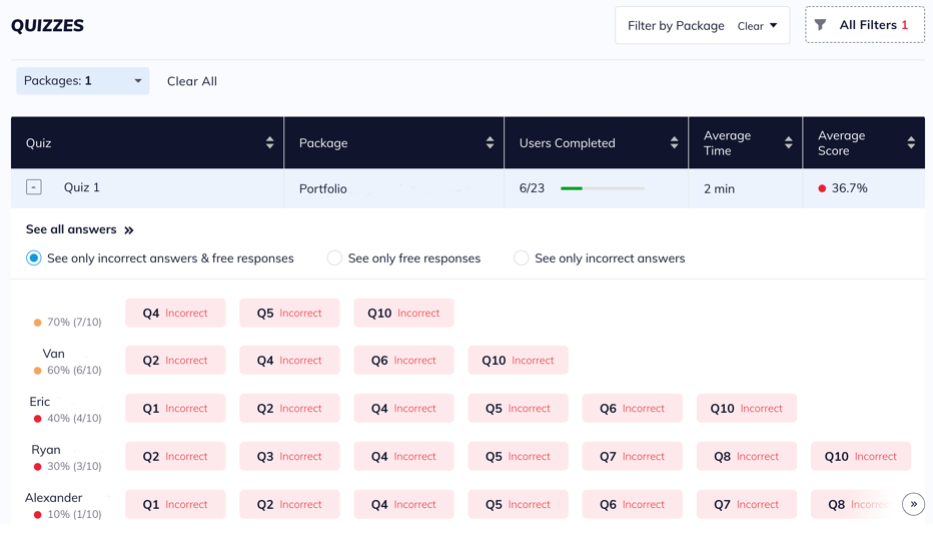
Sorting Options
The following sorting options offer ways to sort quiz analytics, either alphabetically or highest-to-lowest/lowest-to-highest.
- Quiz
- Package
- Users Completed
- Average Time
- Average Score
See Incorrect and Free Response Answers
By default, the table will show only incorrect and free response answers.
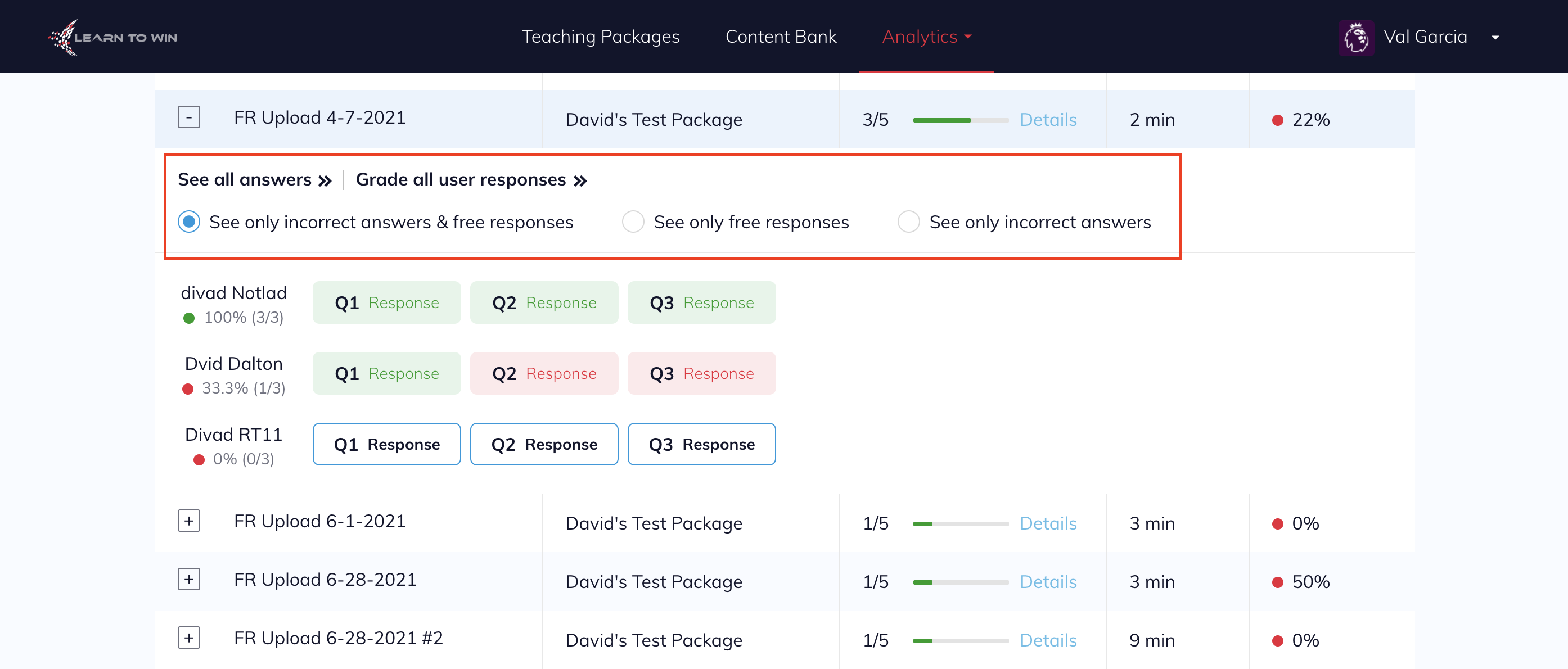
To see all answers, click See all answers >> to open the full quiz results in a new page.
- To see only free responses or incorrect answers, select the appropriate option.
- To mark free response answers correct or incorrect, click on the white boxes with a blue outline, then mark the answer correct or incorrect.
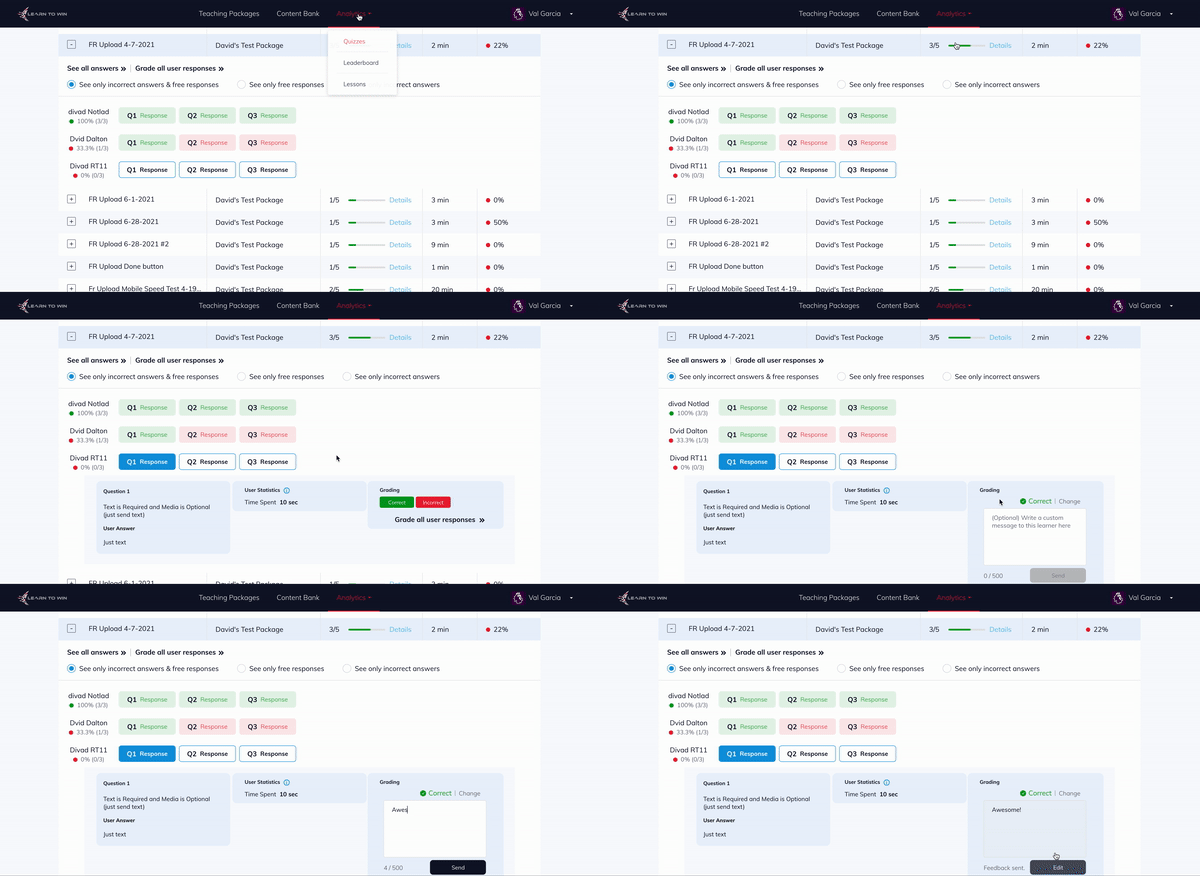
Rapid Grading
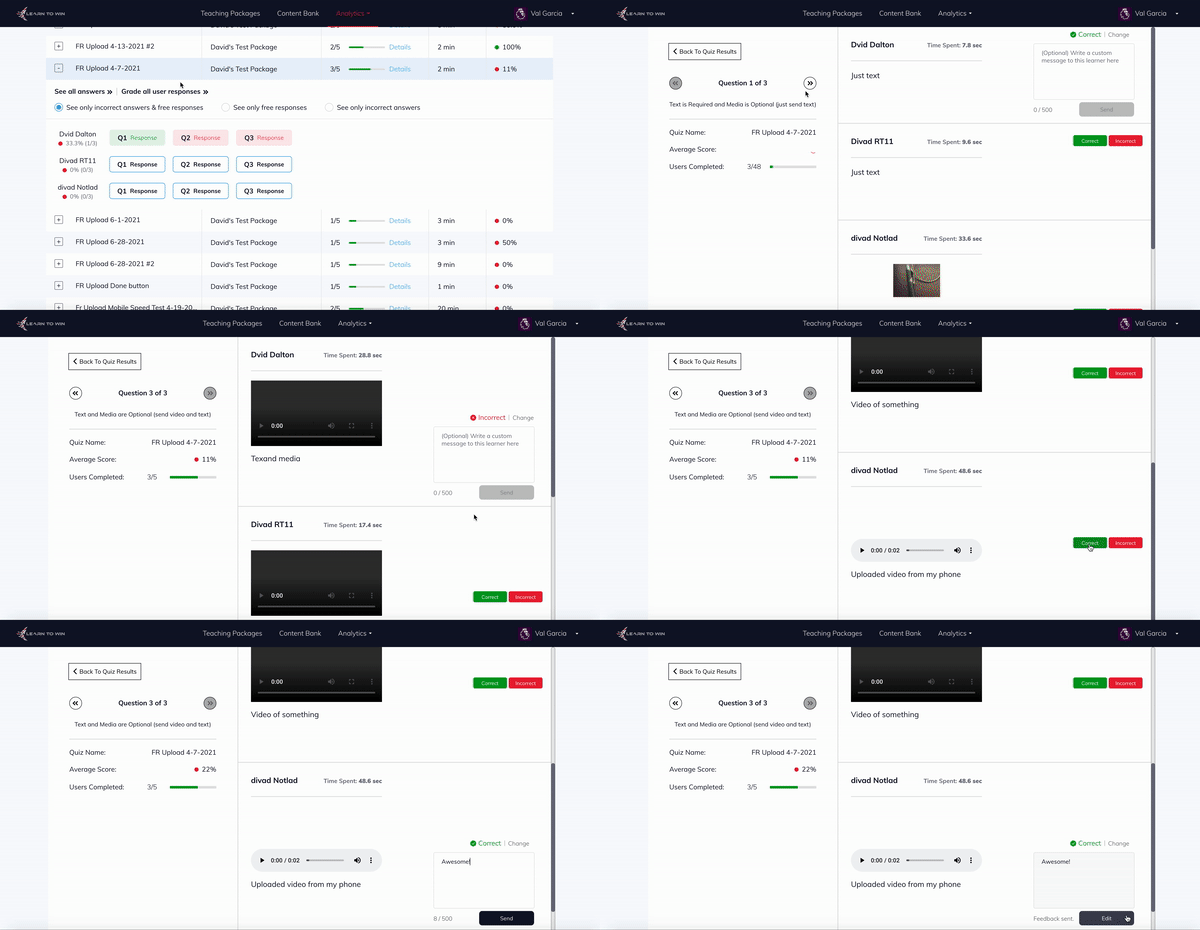
To grade all answers at once, first click on the desired quiz, then select Grade all user responses >>
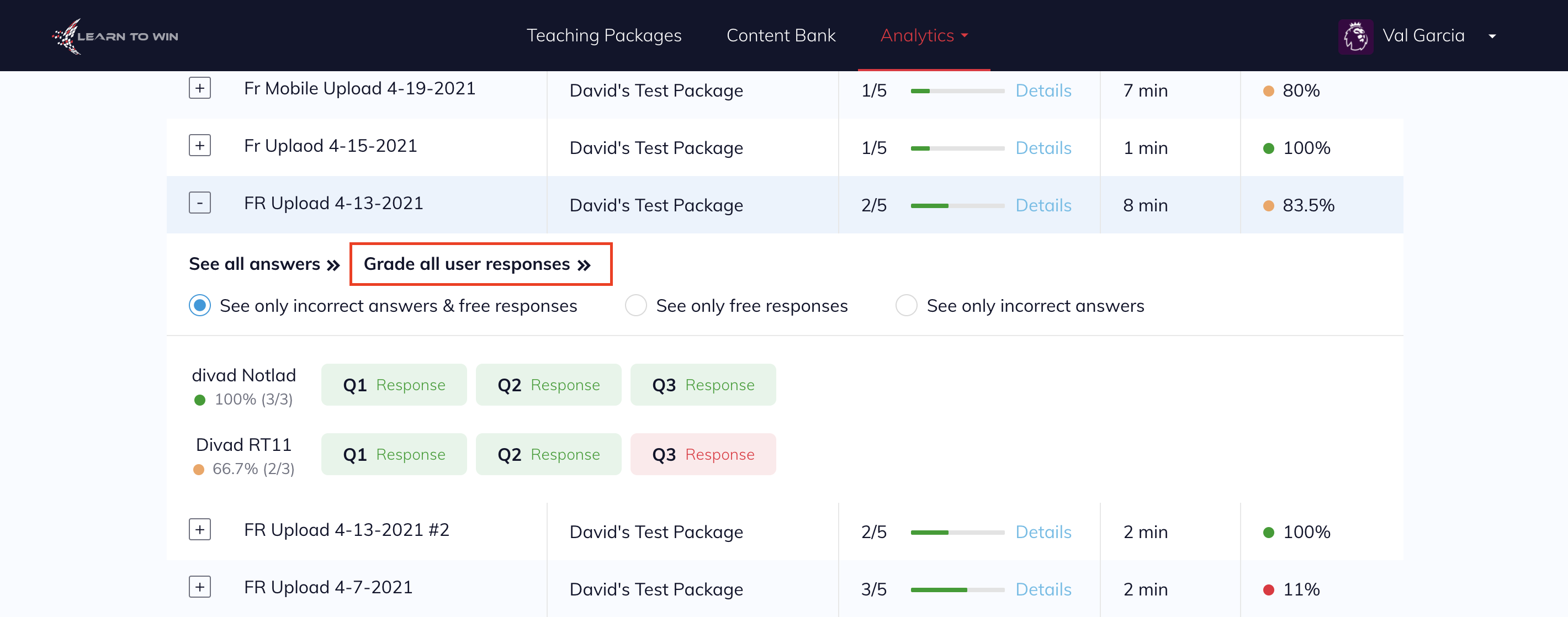
To scroll through questions, click on the << >> arrows on the left side of the screen
- To mark free response answers correct or incorrect, click on the green or red boxes located on the right side of the screen
- Once the question is marked correct or incorrect, you have the option to leave custom feedback for each of the players answers
Custom Feedback
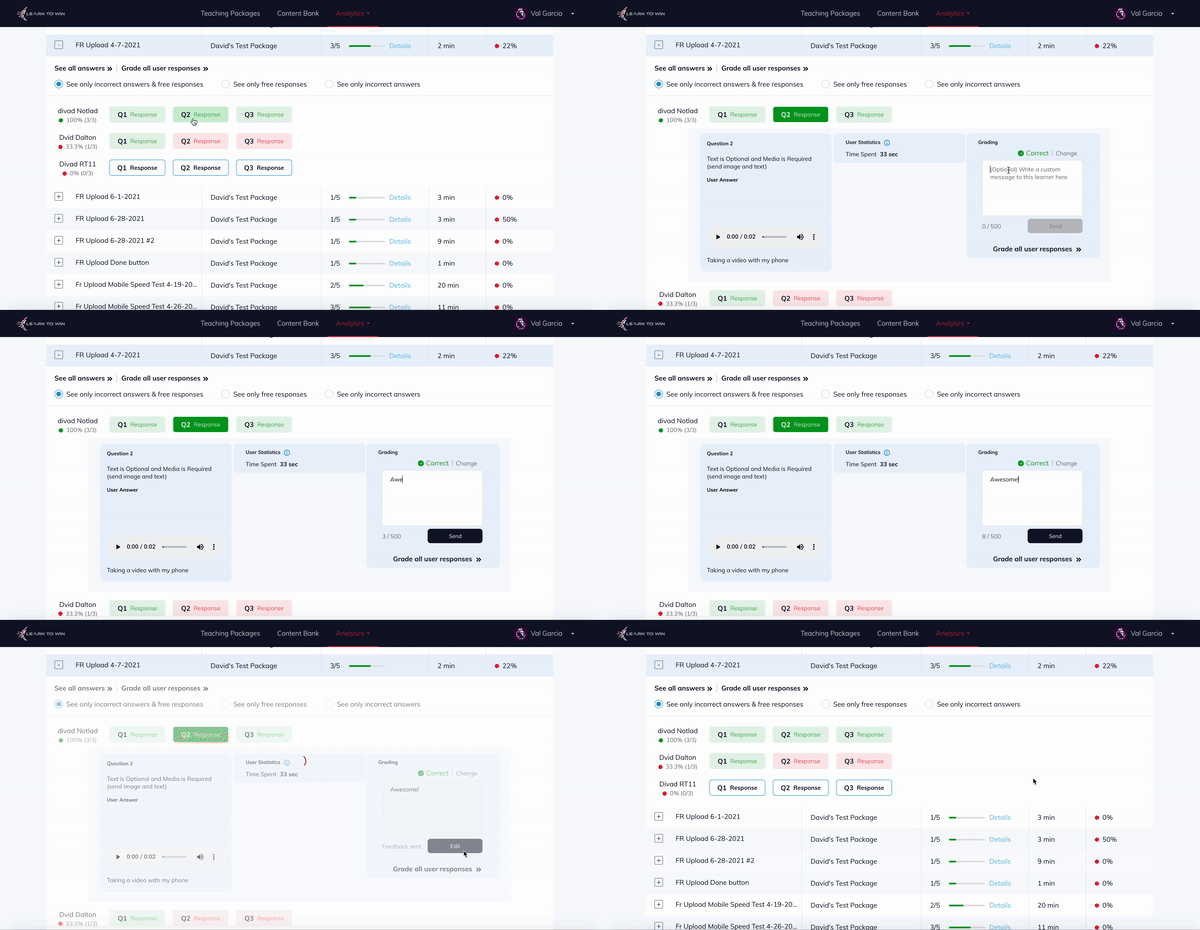
To leave custom feedback, first click on the white boxes with a blue outline to view the user's answer.
Once you mark the question correct or incorrect, click into the box and begin typing your custom feedback.
Filters
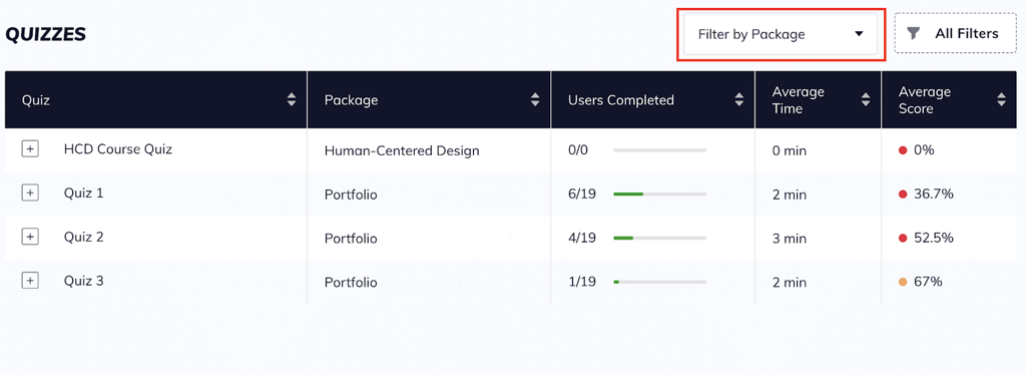
Filter by Package allows you to select a package from your list of packages to easily find quizzes.
The All Filters box opens a righthand menu with additional filtering options.
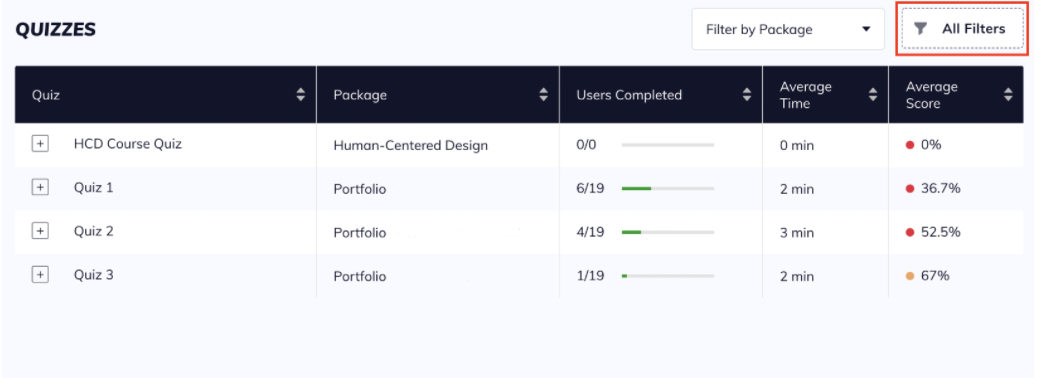
You can apply the following filters, in tandem with one another:
- Filter by Quiz enables searching for and selecting a certain quiz.
- Filter by Package, like the button on the main Quiz Analytics screen, enables searching for and selecting a certain package.
- Filter by Average Score enables selecting a pre-set range or choosing your own desired range by typing the numbers or dragging the blue sliding scale.
- Filter by User Group enables you to filter for a specific group, or groups, to see analytics solely for that group. This also allows you to send notifications to that specific group.