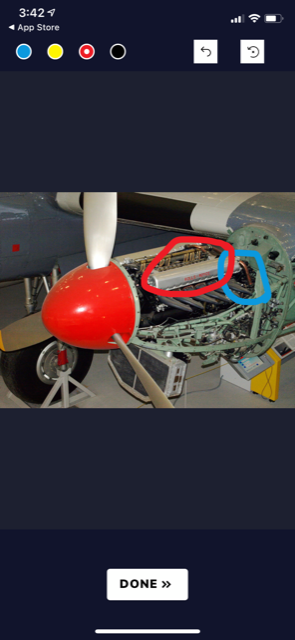
The drawing tool allows learners to identify a specific part of an image by circling or underlining
Instructor View
Instructors add the drawing response template like any other. Click Add New Slide > Drawing Response. Be sure you are in the Quizzing tab.
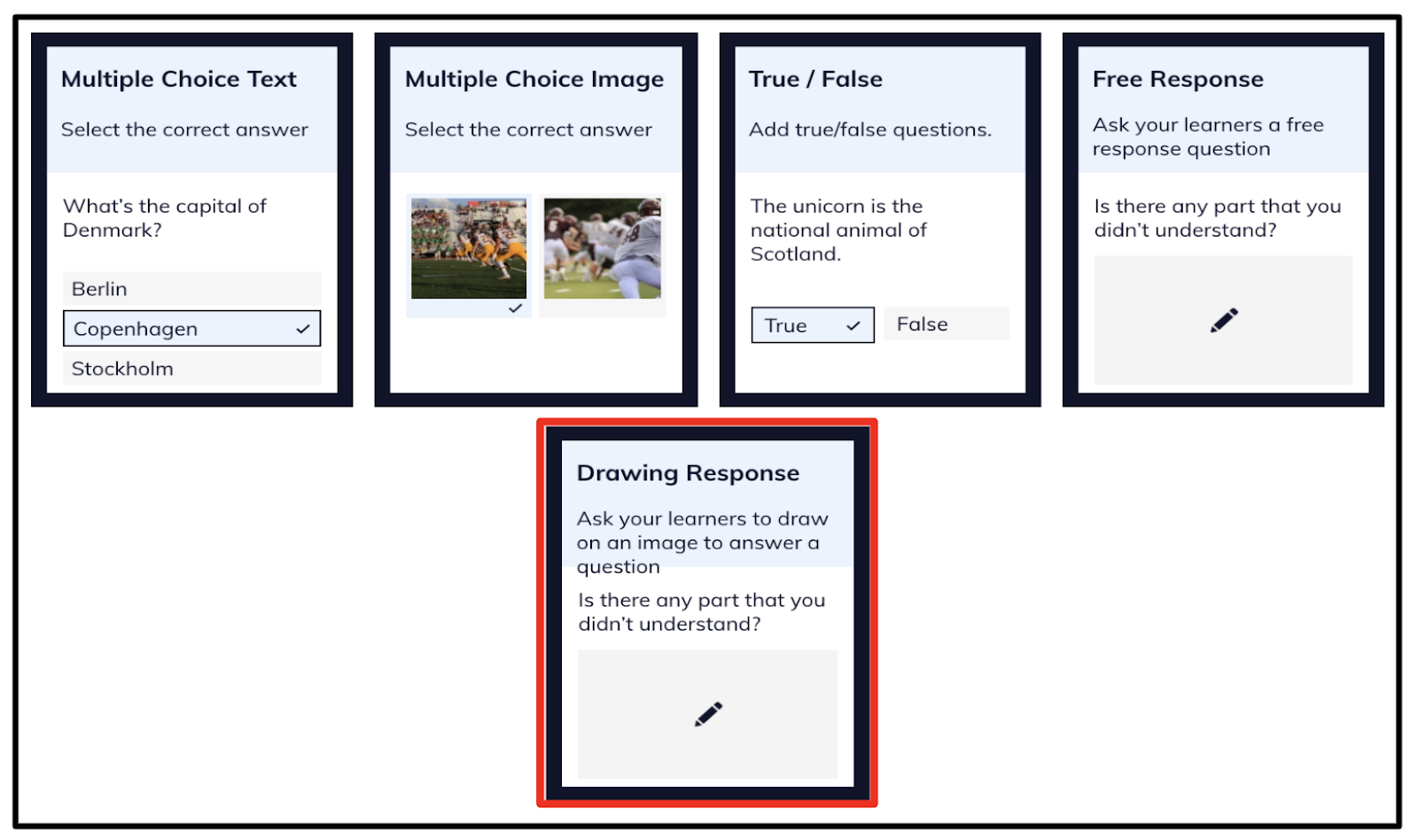
As an instructor, insert an image in addition to the written question and any additional instructions you’d like to provide to the learner.

Grading Drawing Responses
Instructors grade drawing responses like any other free response question. Navigate to Quiz Results and then select the desired quiz.
Select a learner, then click on the image. Mark the answer correct or incorrect, then click on the next learner to continue grading. You may choose to add feedback in your grading.
You can also select Grade all user responses which will allow you to see all responses to the question at once.
Learner View
When learners view a draw response question in the mobile app, here's what they will see. Learners will follow the instructions and draw their desired response.